
Written and tested by Black Joseph
Updated October 27, 2026
Your Google TV can do far more than stream. The best features are hidden in menus, and nobody tells you they’re there.
These 12 simple hacks will change how you use your smart TV, from unlocking apps outside the Play Store to speeding up menus and limiting ad tracking.
No technical experience needed. Just follow the steps. They work on TVs running Google TV, including Sony, Hisense, TCL and Philips.
Let’s find out.
⚡ Start Here
New to Google TV? You’ll find tons of hacks here. Not sure where to begin? These three hacks will take your experience to the next level.
Start with
Then try
📋 Jump to all 12 hacks
- 1.Unlock Developer Options to Install Any App
- 2.Install Apps Outside the Play Store with Downloader
- 3.Find Hidden Apps with Sideload Launcher
- 4.Speed Up Menus with Animation Settings
- 5.Free Up Storage and Clear the Cache
- 6.Protect Your Streaming with a VPN
- 7.Replace the Home Screen with a Custom Launcher
- 8.Watch YouTube Without Ads
- 9.Remap Your Remote Buttons with Button Mapper
- 10.Limit Ad Tracking in Your Privacy Settings
- 11.Swap the Screensaver for Aerial Views
- 12.Use Your Phone as a Remote
1. Unlock Developer Options to Install Any App
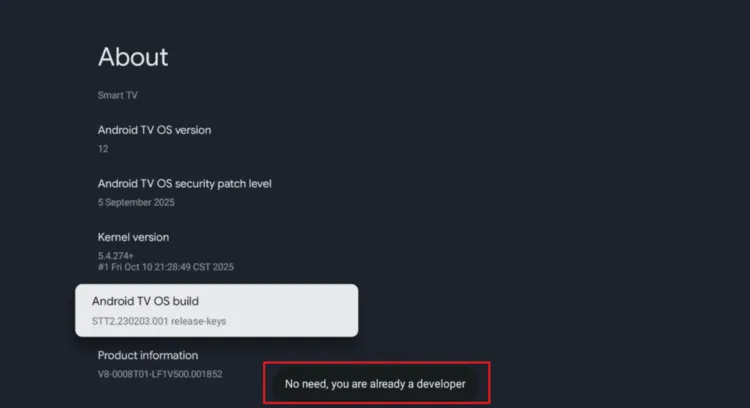
Developer options enabled on Google TV
This is the master key. Hidden inside your Google TV settings is a Developer options menu. Turning it on is the first step to installing apps from outside the Google Play Store, which is also known as sideloading.
It’s a built-in Android feature, so there’s nothing to hack or modify. You just unlock a menu that’s hidden by default.
📋 How To Do It
2. Install Apps Outside the Play Store with Downloader
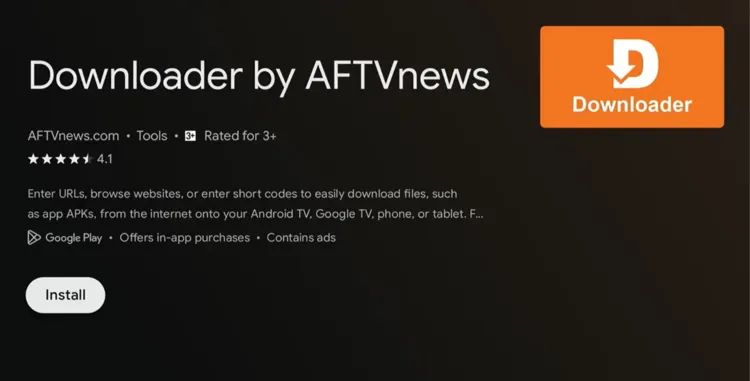
Downloader app on Google TV
Downloader is a free app that lets you download and install apps with a short code or a web address. It’s the easiest way to add apps that aren’t in the Play Store.
After you enter the code, you’ll be able to install APKs. If you use our Master code XXXXXX you’ll see 100+ apps organized into categories such as sports, IPTV players, kids apps, streaming apps and VPNs.
📋 How To Do It
3. Find Hidden Apps with Sideload Launcher
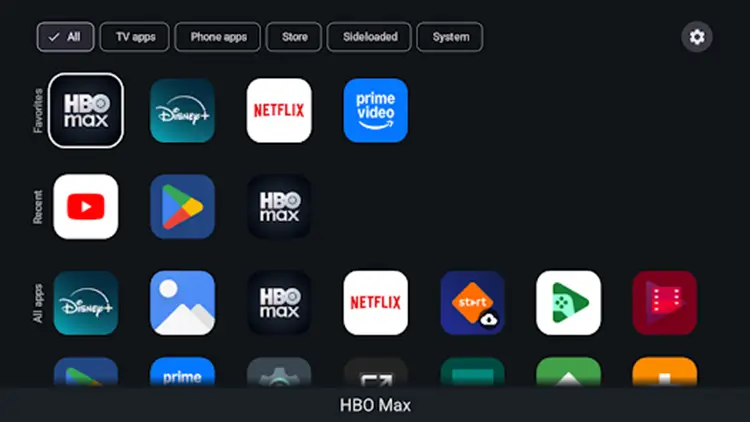
Sideload Launcher on Google TV
Some sideloaded apps install correctly but never show up on the Google TV home screen, because they don’t include the launcher icon that the interface needs. System apps like the Google Play Store can also be hard to reach.
Sideload Launcher shows a simple list of practically every app on your TV, so you can open any of them in a few clicks.
📋 How To Do It
4. Speed Up Menus with Animation Settings
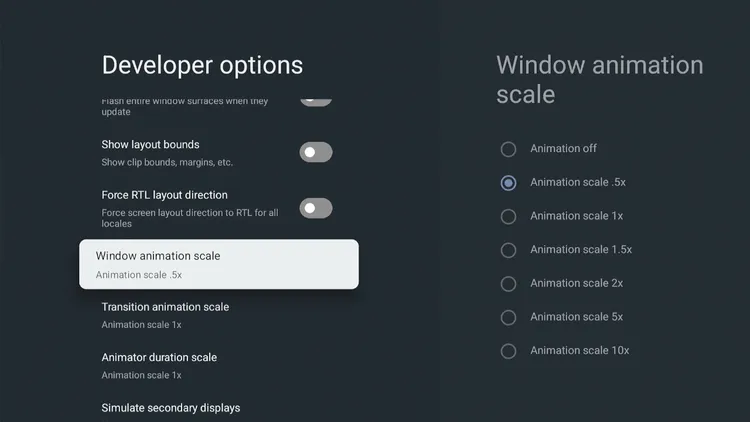
Animation scale settings in Developer options
If your Google TV feels laggy, you can make it feel much quicker by shortening the animation settings. This doesn’t increase the processing power of your TV, but menus and transitions happen faster, so navigation feels more responsive.
📋 How To Do It
5. Free Up Storage and Clear the Cache
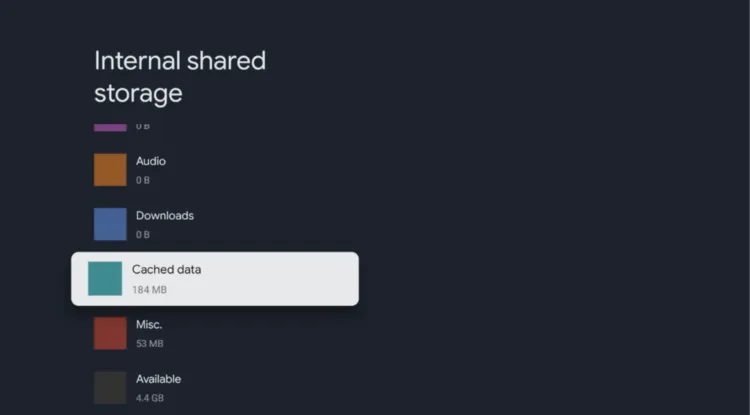
Storage settings on Google TV
When your Google TV runs very low on storage, apps and system processes have less room to work, which can slow everything down. Try to keep at least around 1 GB free.
📋 How To Do It
6. Protect Your Streaming with a VPN
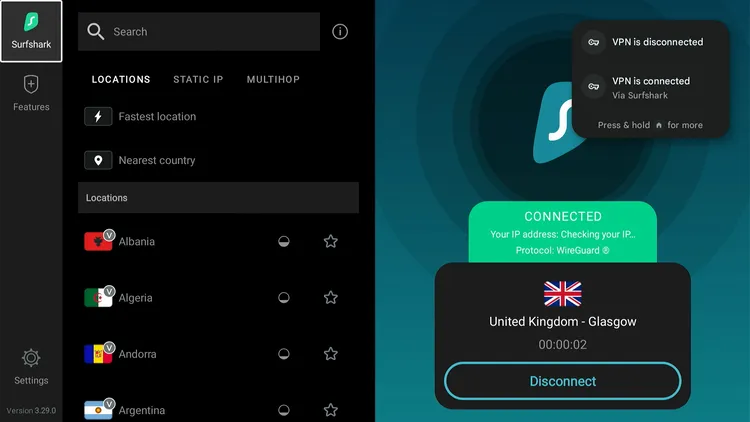
Surfshark VPN on Google TV
Your Google TV can show your internet provider everything you stream. A VPN encrypts your traffic and routes it through a server in another location, so your activity stays private.
Surfshark VPN is our top choice
📋 How To Do It
Stream Safely
Surfshark VPN
Protect your connection when installing and streaming with third-party apps.
Affiliate link. We may earn a commission at no extra cost to you.
7. Replace the Home Screen with a Custom Launcher
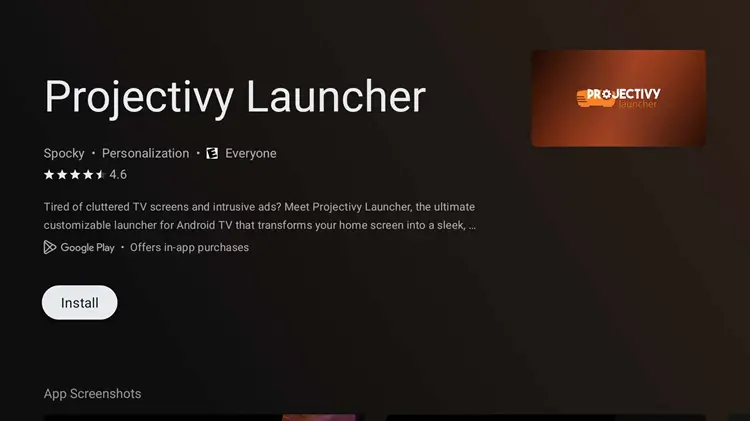
Projectivy Launcher on Google TV
The default Google TV home screen is full of recommendations and promoted content. A custom launcher lets you clean it up and arrange it your way.
Projectivy Launcher is a popular, customizable option. Menu names can vary a little between TV brands.
📋 How To Do It
8. Watch YouTube Without Ads
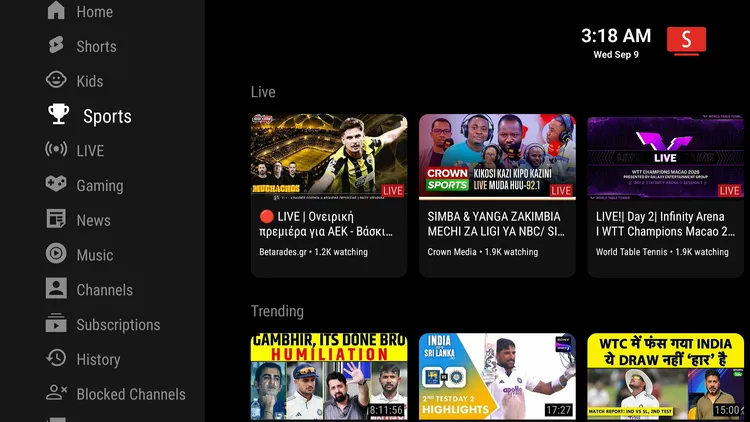
SmartTube on Google TV
The default YouTube app can be full of ads. SmartTube is a free, open-source YouTube client with a TV-friendly interface. It also includes SponsorBlock, which skips sponsored segments inside videos.
📋 How To Do It
9. Remap Your Remote Buttons with Button Mapper
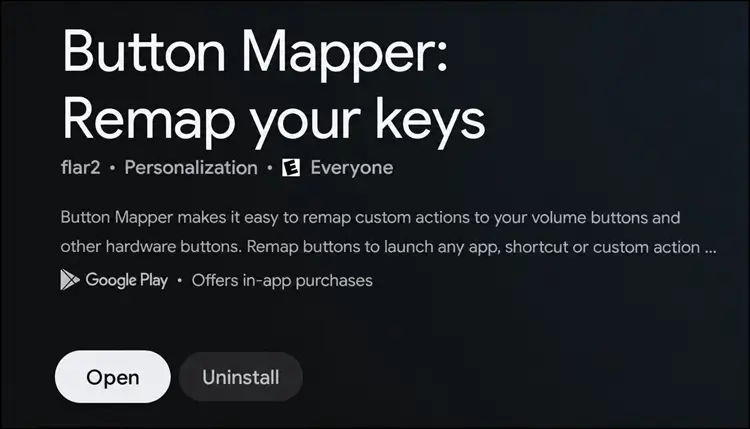
Button Mapper on Google TV
Your remote probably has dedicated buttons for streaming services you never use. Button Mapper lets you reassign them so they open the apps you actually want, toggle subtitles or launch SmartTube instead of YouTube.
📋 How To Do It
10. Limit Ad Tracking in Your Privacy Settings
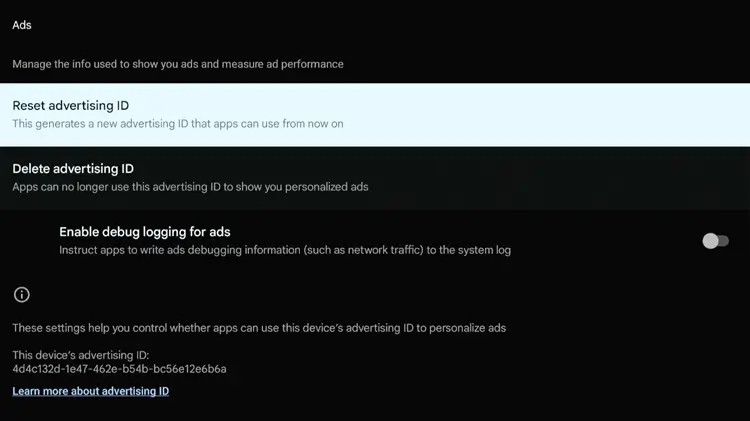
Limit Ad Tracking
Google TV uses an advertising ID to personalize the ads you see in apps. You can’t switch ads off completely, but you can reset or delete that ID so apps can’t keep building a profile around it.
📋 How To Do It
11. Swap the Screensaver for Aerial Views
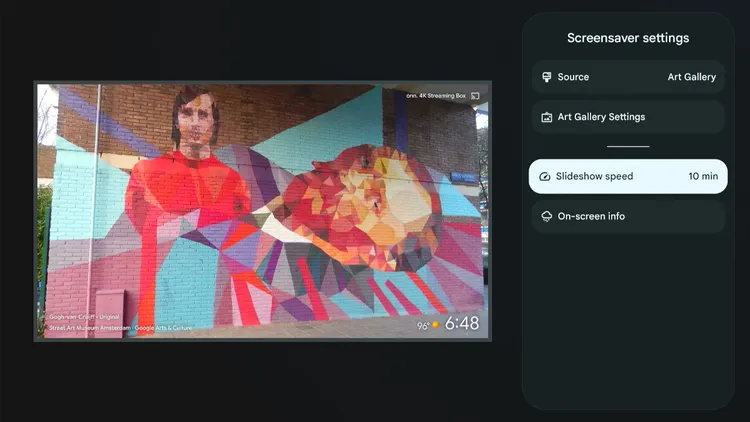
Aerial Views screensaver on Google TV
The default screensaver is a dull slideshow. Aerial Views is a free app that plays 4K aerial footage of cities, coastlines and mountains while your TV is idle.
📋 How To Do It
12. Use Your Phone as a Remote
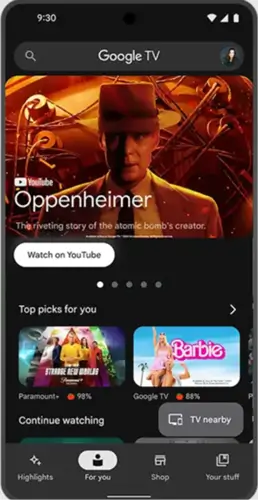
Google TV remote on a phone
Your smartphone can replace the physical remote. The Google TV app gives you a keyboard for searching, a touchpad for faster navigation and voice control. It also helps if the remote dies or goes missing.
📋 How To Do It
Final Thoughts
Your Google TV is a full Android-based platform that a large community loves to customize. With a few settings and free apps, it can feel much faster, cleaner and more useful than it does out of the box.
Bookmark this page and work through the hacks one at a time. Every step builds on the last, and your streaming experience will never be the same.
Stuck on a step? Leave a comment below and we’ll help. For safer streaming, Surfshark VPN is our recommended choice.